

Getting content management system (CMS) implementation right is the difference between a platform your teams actually adopt and one that collects digital dust. Skip the planning, and you're looking at misaligned workflows, resistant stakeholders, and a launch that costs far more than it should.
The 10 phases in this article give you a structured path through the decisions most teams fumble—from stakeholder alignment and data migration to training and post-launch review. Each phase is designed to surface the right questions before they become expensive problems.
The 10 CMS Implementation Phases I Follow
I break content management software implementation into these 10 phases because each addresses a decision I’ve seen teams leave too late:
1. Project Planning and Stakeholder Alignment
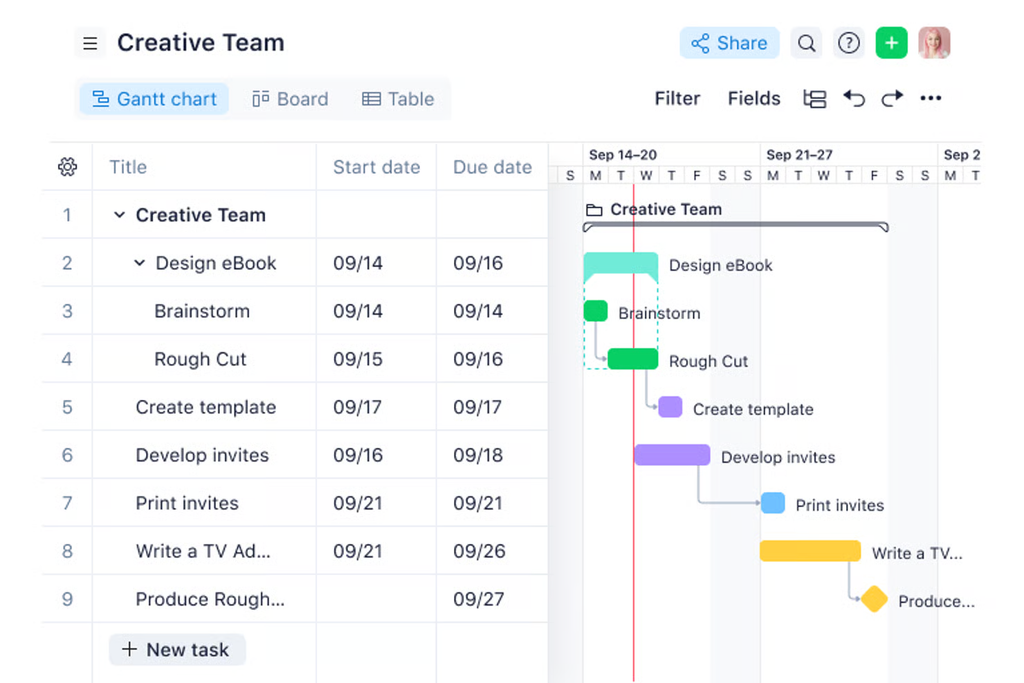
Before you touch a single setting, get the right people in a room. That means marketing, IT, legal, and whoever owns the content workflow day-to-day. Misalignment here is where most implementations quietly start to fail.
Define your scope early and put it in writing. What content types are you managing? Which teams will use the system? What does a successful launch look like in 90 days? These questions sound basic, but I've seen projects stall for weeks because nobody agreed on the answers upfront.
One practical move: assign a single project owner with decision-making authority. Committees slow things down. You want one person who can break ties, escalate blockers, and keep the timeline honest. Map out your phases, set realistic milestones, and get sign-off from stakeholders before moving forward.
Before kickoff, make sure the team has agreed on these decisions:
- Map stakeholders: Identify who creates, reviews, approves, and publishes content, including marketing, IT, legal, and day-to-day content owners.
- Set decision rights: Name one project owner who can resolve scope questions, assign approvers, and escalate blockers.
- Define boundaries: Document which content types, teams, workflows, and integrations the first launch will cover. Note what’s out of scope.
- Choose launch measures: Set specific 90-day targets, such as active team adoption, migration accuracy, or approval turnaround time. Record a baseline so you can compare results.
2. Current Content and Systems Assessment
Before migrating anything, audit what you actually have. Map every content type, where it lives, who owns it, and how it flows through your current system.
Pull in IT to document your existing tech stack and flag any integration dependencies that could affect how your new CMS connects with tools like your customer relationship management (CRM) platform or digital asset management (DAM) system.
Use this assessment to confirm your chosen CMS supports your content structures, approval workflows, user permissions, and integration requirements.
If you're still evaluating platforms, test a representative content type before committing. Review vendor implementation guides to understand migration options, technical prerequisites, and configuration limitations that could affect your rollout.
The goal here isn't to move everything—it's to decide what's worth moving. I'd recommend tagging content as migrate, archive, or delete. Teams that skip this step often import years of outdated content and spend weeks cleaning it up post-launch.
If your current system has broken links, duplicate pages, or orphaned assets, those problems will follow you into the new platform unless you catch them now. A spreadsheet-based content inventory is enough to get started; it doesn't need to be a formal audit tool.
Use these criteria to decide what happens to each item in your content inventory:
| Decision | Use When | Check Before Acting |
|---|---|---|
| DecisionMigrate | Use WhenThe content is current, useful, and owned by a team. | Check Before ActingConfirm its owner, destination, metadata, and links. |
| DecisionArchive | Use WhenThe content has historical or compliance value but no active use. | Check Before ActingCheck retention rules and set access permissions. |
| DecisionDelete | Use WhenThe content is obsolete, duplicated, or has no clear purpose. | Check Before ActingConfirm there are no dependencies, legal holds, or inbound links. |
Have an account? Log In
3. Infrastructure Setup and Environment Configuration
Stand up three separate environments before anyone touches content: development, staging, and production.
Your developers need a sandbox to test configurations without risking live content, and your stakeholders need a staging environment to approve the setup before go-live. Skipping staging is where surprise bugs become launch-day emergencies.
Loop in IT early to handle server provisioning, SSL certificates, CDN configuration, and access controls. If you're on a cloud-hosted CMS, confirm your hosting tier matches your expected traffic load—underestimating capacity here shows up fast. Set role-based permissions now, not after migration.
Defining who can publish, edit, or only view content at the infrastructure level saves you from cleaning up a permission mess later. Document every configuration decision as you go; your future self will thank you when something breaks at 11pm the week before launch.
Before content moves into production, use this checklist to catch configuration gaps that can disrupt launch:
- Keep environments aligned: Match staging and production settings where possible, while using test data and credentials in development.
- Control configuration changes: Track changes in version control and document which settings differ by environment.
- Protect credentials: Store integration credentials and other secrets in an approved secrets manager, not in code or shared documents.
- Test recovery: Confirm backups work and document how to roll back a deployment if publishing or integrations fail.
- Verify access and monitoring: Test role permissions, alerts, and logs before launch so the right people can respond to issues.
4. System Customization and Workflow Design
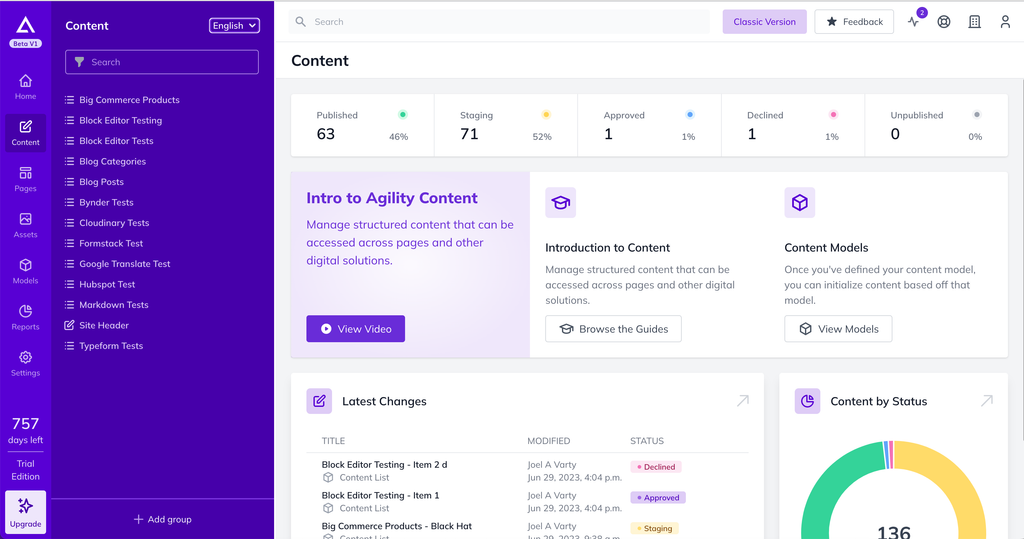
This is where the CMS starts to reflect how your team actually works. Map your real content workflows first—draft, review, approval, publish—and build them into the system rather than forcing your team to adapt to defaults.
Before configuring approval workflows, define how content will be structured in your CMS. Set up content types for blog posts, landing pages, and other digital assets, including required fields, reusable components, and relationships between content items.
Review your platform's implementation guides to confirm how these structures work, then test a representative content type before rolling out the configuration across your site.
Involve your content leads here, not just developers. They'll catch workflow gaps that IT won't anticipate, like a legal review step that needs to happen before scheduling, or a staging check that marketing requires before every publish. Get those steps documented and configured before anyone starts using the system.
One thing I'd flag: resist over-customizing. Teams often build elaborate approval chains that slow publishing to a crawl. Keep the workflow as simple as it needs to be to maintain quality control. You can always add complexity later; removing it after launch is much harder.
Use this sequence to turn your team’s workflow into CMS rules without adding unnecessary approval steps:
- Map the path: Document each stage from draft through publication, including who owns the handoff.
- Set permissions: Give each role only the access it needs to create, review, approve, or publish.
- Define exceptions: Specify what happens when content is urgent, rejected, or needs legal review.
- Test real scenarios: Run sample content through staging and adjust unclear steps before launch.
5. Integration With Existing Business Systems
Map every tool your CMS needs to talk to before you write a single line of integration code. That typically means your CRM, DAM, analytics platform, and email marketing tools. Get IT and your marketing ops lead in the same room—IT knows what's technically possible, and marketing ops knows what data actually needs to flow where.
Start with the integrations that matter most to your publishing workflow, whether that's your CRM, DAM, or analytics platform. When systems connect through application programming interfaces (APIs), check interoperability by confirming that content fields, media references, and metadata transfer correctly between platforms.
Test each connection in staging with realistic, anonymized or synthetic data so you can catch mapping errors before launch. Build in a dedicated testing window, and document integration settings, credentials, and ownership so technical handoffs don't create gaps later.
Use these checks to prepare each connection for testing and handoff:
- Confirm data flow: Record which system sends or receives each data type, how often it syncs, and which team owns the data.
- Map fields: Match CMS fields to the corresponding CRM, DAM, analytics, or email platform fields. Check identifiers, required values, and format differences.
- Set access rules: Use approved credentials with only the permissions the integration needs. Store secrets in an approved secrets manager.
- Test realistic cases: In staging, check representative records, missing values, duplicates, and updates. Confirm each system handles them as expected.
- Plan for failures: Define how the integration reports errors, who investigates them, and whether failed updates can be retried safely.
- Document the handoff: Record endpoints, data mappings, sync schedules, credential ownership, and support contacts for each connection.
6. Content Migration and Data Transfer
Migration is where your earlier inventory work pays off. Work from your migrate/archive/delete tags and move content in batches—not all at once. Prioritize your highest-traffic pages and active assets first so the core of your site is verified before you touch lower-priority content.
Have your content leads validate migrated pages in staging, not just IT. They'll spot formatting breaks, missing metadata, and broken internal links that a technical check won't catch. Run a URL mapping exercise before go-live to make sure redirects are in place for any changed paths.
Teams that skip this step hand their SEO history to a 404 page. Transfer content in waves, confirm each batch, and don't cut over to production until a full staging review is signed off.
Use this batch checklist to catch content and tracking issues before each migration wave moves forward:
- Record the batch: List source items, destination locations, owners, and expected record counts.
- Test a sample: Migrate representative pages and assets first, including content with unusual formats or metadata.
- Reconcile results: Compare source and destination counts, then check fields, links, media, and redirects.
- Log defects: Assign each issue an owner and resolution status before continuing.
- Approve the wave: Ask content owners to sign off in staging; pause the next batch if key content or redirects are missing.
7. User Roles and Permissions Configuration
Define roles before anyone logs in. Map your actual team structure—writers, editors, legal reviewers, and publishers—and assign permissions that match what each group needs to do, nothing more.
Your CMS admin and content leads should configure this together, since IT knows what the system can enforce and content leads know how the team actually works.
The most common mistake here is copying your org chart instead of your workflow. A senior writer doesn't need publishing access just because they're senior. Scope permissions by function, not seniority.
Also set up role-based access for any external contributors or agency partners now—retrofitting permissions after launch is messy and creates security gaps. Test each role in staging by logging in as a sample user and walking through a real content task before you go live.
Before launch, validate permissions against real work rather than job titles:
- Start with tasks: List what each role needs to create, review, approve, publish, or manage.
- Limit access: Grant only the permissions needed for those tasks, including for agency partners and other external contributors.
- Separate approval from publishing: Give publishing rights only to roles responsible for release, even when senior writers create the content.
- Test role access: In staging, sign in as a sample user for each role and complete a realistic content task. Check that restricted actions stay unavailable.
8. Testing and Quality Assurance
Test in staging before anything touches production—no exceptions. Assign a dedicated QA lead to own the process, and pull in both your technical team and content leads. Developers catch broken integrations and permission errors; content leads catch formatting issues, missing metadata, and broken links that a technical check will miss.
Run real scenarios, not simplified ones. Test the full publishing workflow with actual content types, including edge cases like urgent approvals or content with embedded media. Use your analytics platform's preview or test mode to verify that tracking works correctly in staging, then confirm the production tags are functioning after go-live.
Keep a shared defect log with assigned owners and resolution statuses so nothing slips through. Don't move to go-live until every blocker is resolved and stakeholders have signed off on staging. A compressed testing window is where launch-day surprises are born.
Run these staging checks in sequence to catch publishing defects before your CMS launch:
- Publish a sample: Create, edit, schedule, and publish a page with images, links, and metadata. Confirm each status changes as expected.
- Check role boundaries: Repeat a content task with writer, reviewer, and publisher accounts. Verify each can perform assigned actions but cannot access restricted ones.
- Inspect connected systems: Publish a test record and confirm mapped fields reach the CRM or analytics platform correctly. Check how missing values and failed requests appear.
- Review the live experience: Check the published page on mobile and desktop. Verify formatting, links, redirects, media, and tracking events.
- Check search visibility: Confirm the staging site is not accessible to search engines. Before launch, verify production indexing settings, canonical tags, and XML sitemap entries so important pages can be properly discovered and indexed after go-live.
- Retest resolved defects: Log each issue with an owner and status, then rerun the affected scenario after a fix. Get stakeholder sign-off before launch.
9. Staff Training and Change Management
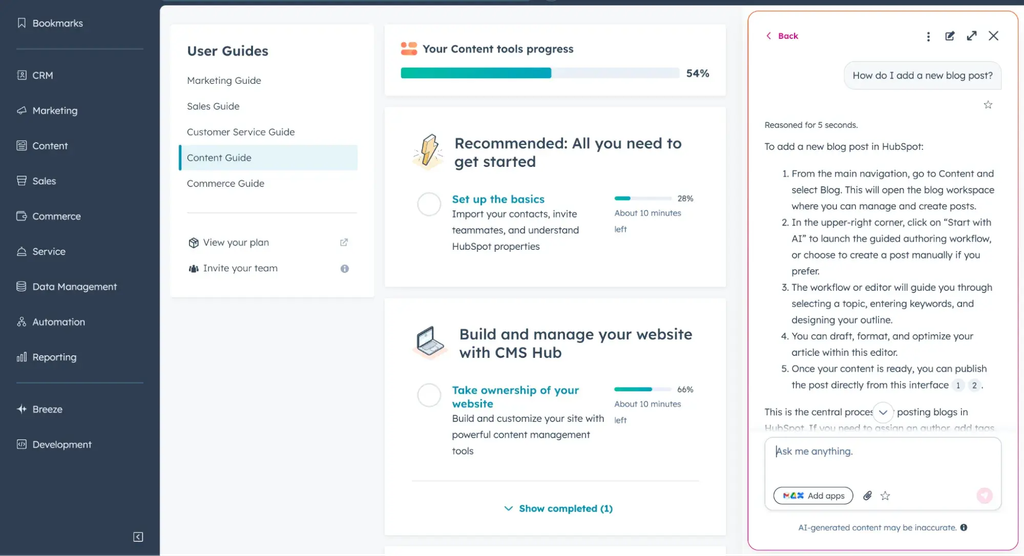
Train your team on the workflows they'll actually use, not a generic platform walkthrough. Pair writers with the publishing flow, editors with the review queue, and admins with permission management. Role-specific training sticks; broad demos don't.
Bring your content leads into training design early. They know which steps will confuse people and where workarounds will quietly appear if the process isn't clear. Expect resistance when habits change—that's normal.
Designate a go-to person for questions in the first few weeks so small frustrations don't become bad habits. The teams that skip structured change management often discover months later that half their staff is bypassing the approval workflow entirely because nobody explained why it matters.
Make role-based training practical and relevant with these steps:
- Match tasks to roles: Train writers on drafting and submitting content, editors on review queues, and admins on permission management.
- Practice real workflows: Have each group complete common CMS tasks in a safe environment before launch.
- Provide implementation guides: Create short, role-specific guides covering common CMS tasks, such as creating content, managing approval workflows, publishing pages, and troubleshooting errors.
- Explain the process: Show how review and approval steps work, and clarify when teams should use them.
- Name a support contact: Give staff a go-to person for questions during the first few weeks.
- Adjust from feedback: Track recurring questions and update training materials when instructions or workflows cause confusion.
10. Go-Live and Post-Launch Optimization
Cut over during a low-traffic window—not a Monday morning. Have your CMS admin, IT lead, and content lead available for the first few hours to catch anything that slips through staging. Run a quick smoke test the moment you go live: publish a test page, verify analytics tags fire, and confirm redirects resolve correctly.
Don't declare success and walk away. The first two weeks post-launch are where real usage exposes gaps that testing never caught. Watch your error logs, monitor broken link reports, and check in with your team about workflow friction.
If writers are skipping the approval queue or editors are emailing drafts instead of using the review workflow, that's a signal the process needs adjustment—not just more reminders. Fix the friction early, before workarounds become habits.
Use this two-week routine to turn launch signals into clear follow-up actions:
- Assign daily checks: Have the CMS admin review error logs, broken-link reports, analytics events, and redirect behavior during the first few days.
- Set escalation rules: Define which issues block publishing, who investigates each type, and how staff should report problems.
- Collect workflow feedback: Ask writers, editors, and publishers where tasks stall or leave the CMS, then record specific examples.
- Prioritize fixes: Group issues by user impact and assign an owner and due date before making workflow or configuration changes.
- Verify changes: Retest affected publishing paths, permissions, tracking, and redirects after each fix, then share updates with the team.
More Articles
Top Content Management Software to Consider
Here's my shortlist of the best content management software solutions:
Best Practices for a Successful Content Management Software Implementation
CMS implementation issues often start with assumptions about content, integrations, or team workflows that haven’t been tested. Use these checks to pair common missteps with practical safeguards:
| Don’ts | Instead, Do: |
|---|---|
| Don’tsChoose a CMS based only on a feature demo | Instead, Do:Map your publishing tasks, content types, integrations, and channel requirements before comparing platforms |
| Don’tsAssume every content type and relationship will fit the new CMS | Instead, Do:Model representative content, including nested or unusual records, and test it before committing to the structure |
| Don’tsMigrate everything without an inventory or sample batch | Instead, Do:Record source items, destination locations, owners, and expected counts, then test a representative batch |
| Don’tsTreat matching record counts as proof that migration worked | Instead, Do:Check fields, links, media, metadata, and redirects, and assign owners to logged defects |
| Don’tsCopy your org chart into the permissions setup | Instead, Do:Define access by the tasks each role performs and reserve publishing rights for people responsible for release |
| Don’tsLeave integrations and analytics checks until launch | Instead, Do:Test field mappings, missing values, failed requests, and tracking events in staging |
| Don’tsTrain everyone with the same generic walkthrough | Instead, Do:Have each role practice its real drafting, review, publishing, or administration tasks |
| Don’tsCompress QA or skip staging sign-off to meet a launch date | Instead, Do:Run realistic publishing scenarios, resolve blockers, and get content and technical stakeholders to approve staging |
| Don’tsGo live without a monitoring and escalation plan | Instead, Do:Assign owners for error logs, broken links, redirects, analytics, and workflow reports during the first two weeks |
Your CMS Launch Is the Beginning, Not the Finish Line
Once your CMS is live and your team is trained, the next challenge is keeping content moving—explore content workflow software to find tools that support your review, approval, and publishing processes as your operation scales.